
Descript won’t open on Windows 11: six checks to run
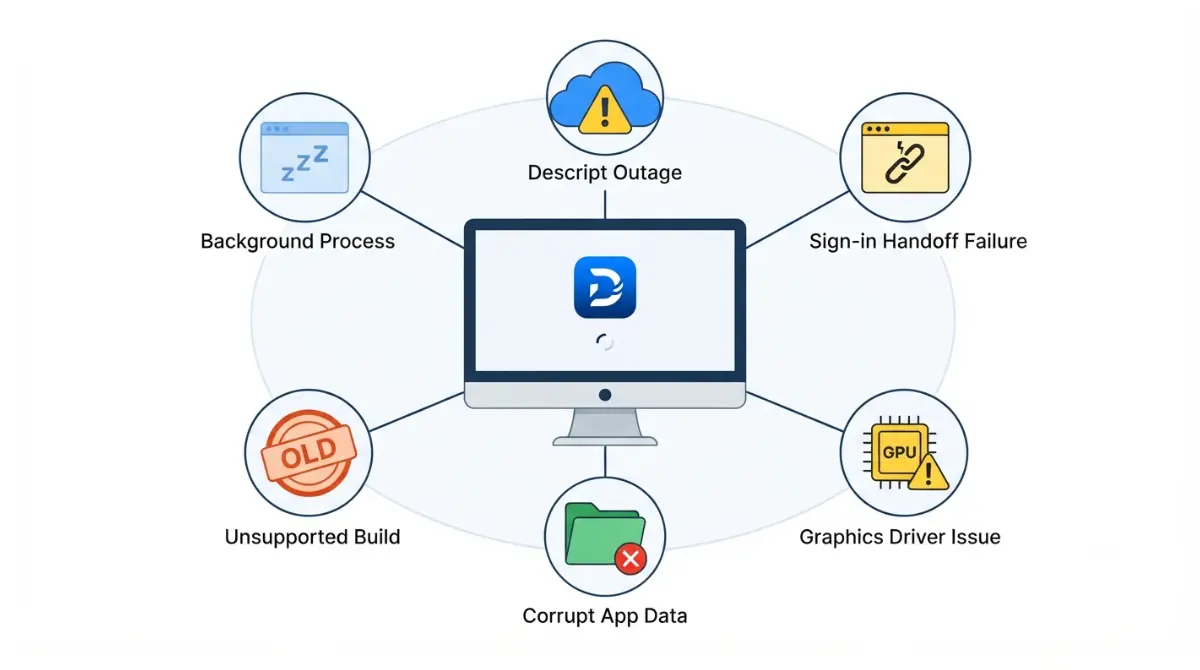
Table of Contents
Descript rarely fails to launch on Windows 11 for one reason. Six states cause it: a background tray process, a blocked browser sign-in handoff, an unsupported build, a pre-2021 GPU driver, corrupt app data, or a Descript outage. Descript’s documented Windows floor is Windows 11, 64-bit, 8 GB RAM (Descript’s published Windows requirements, verified 18 September 2026). Start by identifying which state you’re in.
Which Descript failure you’re actually looking at
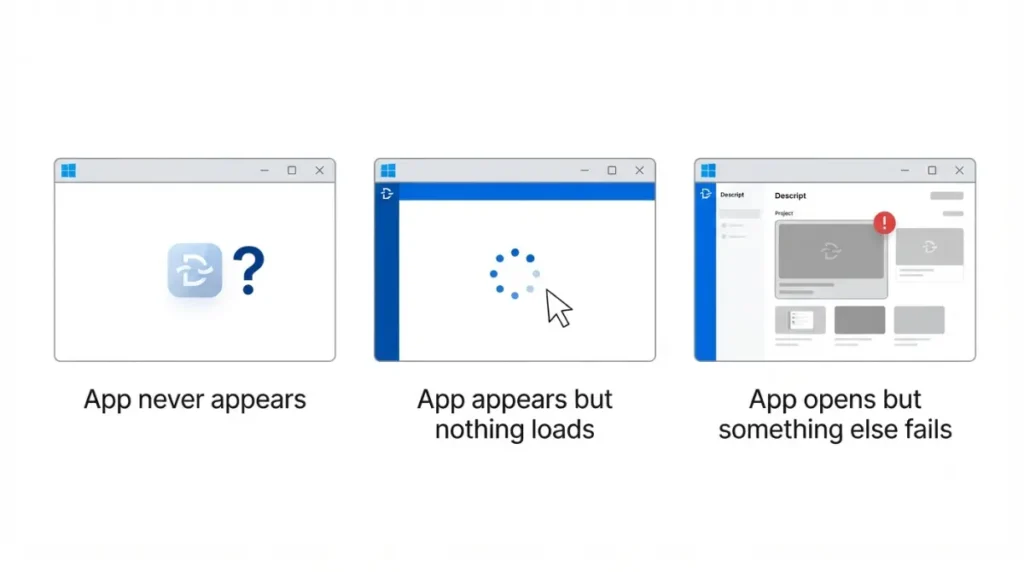
Six states produce a Descript desktop app that won’t start on Windows 11. Identify yours before changing anything.
The app never appears
Nothing opens, or the window flashes and closes. That points at a background instance, a build outside the support window, or a graphics driver — checks 2, 4 and 5.
The app appears but nothing loads
A window opens and hangs, or the sign-in button does nothing when clicked. That points at the browser handoff or corrupt app data — checks 3 and 6.
It opens fine but something else fails
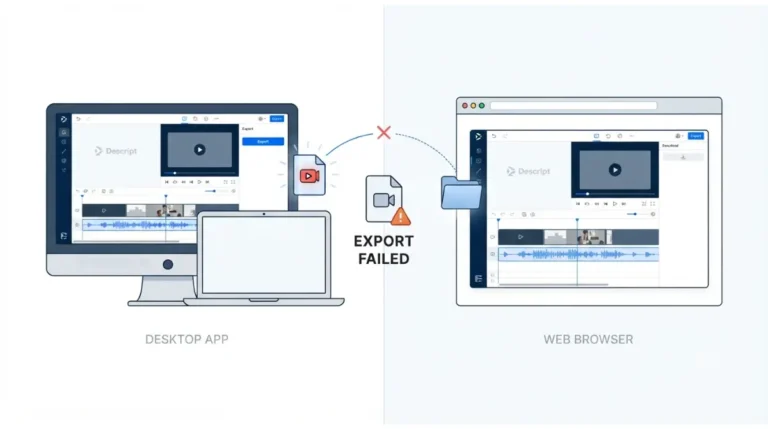
If one project is stuck rather than the app itself, Descript’s guide to a project that won’t load covers that instead. If the app opens and the export dies, see exports failing on the desktop app.
What stops Descript launching on Windows
Three documented mechanisms account for most of the six states.
A copy is already running in the background
Descript opens automatically when you sign in to Windows, keeping a taskbar process available (Descript’s install and auto-update documentation, retrieved 18 September 2026). A running instance can swallow the launch of a second one.
Sign-in depends on your browser, not the app
🔍 Why It Works This Way: Descript authenticates through your browser rather than inside the app window. Descript documents unresponsive Sign in and Sign up buttons as the browser failing to open for authentication — so a browser misconfiguration presents as a dead application.
Hardware and driver limits
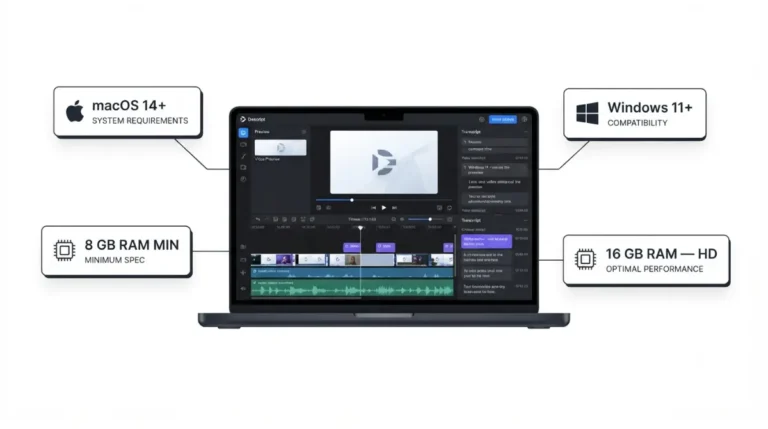
💵 Verified: Windows 11 or later, 64-bit only, 8 GB RAM minimum, 16 GB recommended for HD and 32 GB for 4K. Screen recording additionally requires a dedicated GPU with a driver from 2021 or later — Descript’s system requirements page, retrieved 18 September 2026.
Machines below that floor are covered in full in Descript’s documented Windows requirements.
Quit the background copy and fix the sign-in handoff
These two checks need no reinstall and resolve the most common states.
Fully quit Descript on Windows
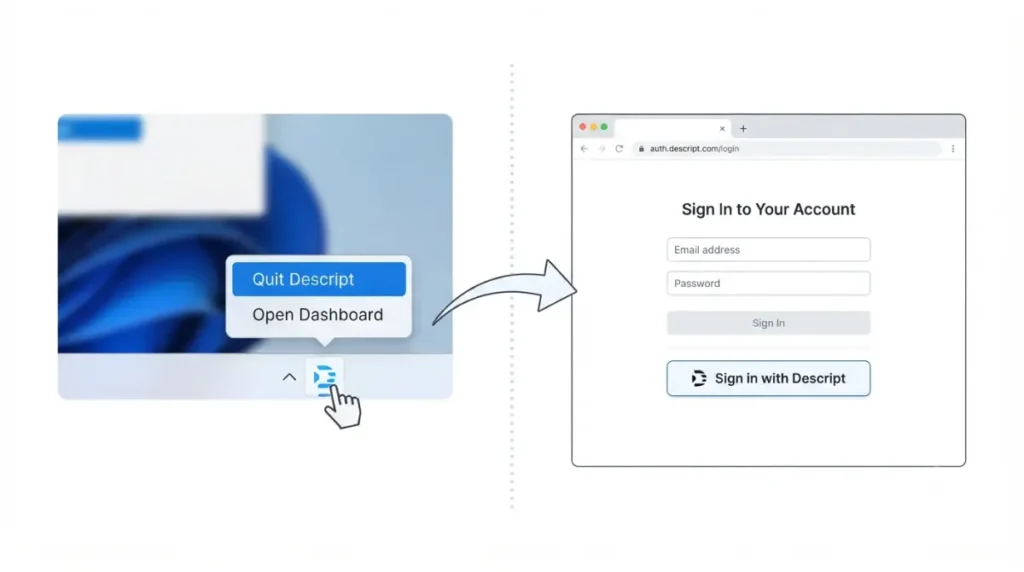
- Click the arrow in the notification area of your taskbar to show hidden icons.
- Right-click the Descript D icon and select Quit Descript.
- Relaunch Descript from the Start menu.
That path is Descript’s own Windows instruction (Descript’s uninstall documentation, retrieved 18 September 2026). Worth knowing: on 18 September 2026 Descript’s project-loading and performance pages gave Windows readers the macOS menubar equivalent instead, with no Windows version alongside it. No D icon in the notification area means nothing is running — skip to the next section.
When Sign in or Sign up does nothing
Descript’s documented sequence is to check whether a browser window opened, change your default browser, set a default browser for HTTPS on Windows, restart, and only then uninstall (Descript’s sign-in troubleshooting guide, retrieved 18 September 2026).
If the account is temporarily locked
Repeated failed sign-ins lock the account, and Descript states most locks clear within 15 to 60 minutes (verified 18 September 2026). Wait it out rather than reinstalling.
When the build or the graphics driver is the problem
Two states survive a restart: an out-of-support build and a GPU that cannot decode.
The build is outside the support window
Descript supports the current version plus any released in the last three months, and the app updates itself in the background, applying the update the next time it opens (verified 18 September 2026). If you see Authentication succeeded, but fetching your user information failed, Descript documents that as a legacy build, with a full uninstall and reinstall as the fix.
Graphics drivers older than 2021
- Run Windows Update and let it complete.
- Open Device Manager and check the driver date under Display adapters.
- If it predates 2021, update from your GPU manufacturer, per Descript’s GPU driver guidance.
Force software video decoding, and when you can’t reach it
Descript’s Force software video decoding setting lives inside the app’s settings, so it only helps if the app opens far enough to reach them. If the window never appears, this check does not apply to you — go to the next section.
Reset app data, then reinstall from scratch
🛟 Back This Up First: Descript writes edits to the cloud as you make them and has no Save button, per Descript’s documentation on cloud saving (retrieved 18 September 2026). Before you delete anything, relaunch if you can and wait for the sync indicator in the top-left of the window to stop spinning — that indicator means edits or media are still uploading. Anything that has not finished syncing when you clear the local folder is not recoverable from the cloud.
This is the last resort, in this order.
Reset app data first — the reversible option
Descript’s documented in-app refresh is Help, then Reset app data. It clears local state without removing the installation.
Full uninstall, including files and preferences
- Open Control Panel, then Programs and Features, select Descript and choose Uninstall.
- Open File Explorer and go to your user folder, then AppData, then Roaming.
- Delete the Descript folder there.
- Empty the recycle bin, which Descript advises before reinstalling.
All four steps are Descript’s own, retrieved 18 September 2026. On a work-issued or managed Windows 11 machine the uninstall needs administrator rights — stop here and ask your IT administrator rather than working around it.
Reinstalling safely
Download only from Descript’s official Windows download page, linked from its install documentation. Installers from anywhere else are not supported and are not covered here.
When it’s Descript’s side, and how to keep it from recurring
A clean install that still won’t open may not be your machine at all.
Check for an active incident
Descript’s status page reports operational status for the app, cloud services, API services and live incidents, and offers email or RSS alerts (how to check Descript’s service status, retrieved 18 September 2026). All systems operational does not mean your problem is imaginary — it means you are in one of the other five states.
Keep working without the desktop app
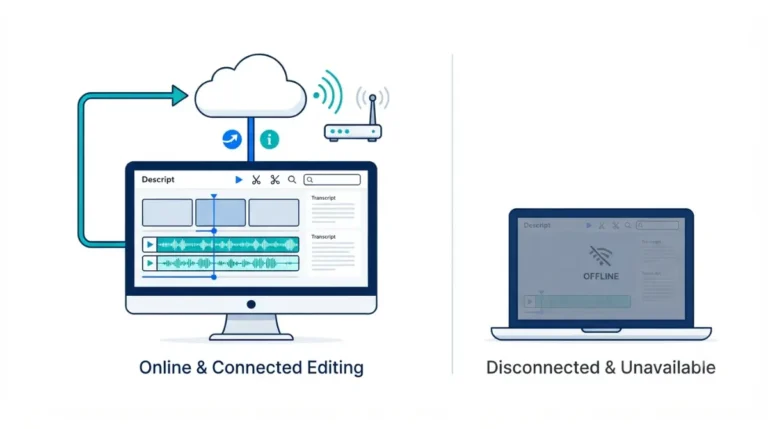
Descript runs in the browser at its web address. What that version can and cannot do is covered in what Descript can’t do without a connection.
Two settings that prevent repeats
Leave automatic updating alone — it is what keeps you inside the three-month support window. Then decide deliberately whether Launch at login stays on, since it is what leaves a process running between sessions.
🧾 Not Tested: Nothing here was run on a Windows 11 machine. We hold no Descript account and no Windows test rig, so every step, error string and file path above comes from Descript’s published documentation on the date stated beside it. What we could not verify first-hand: whether each fix resolves each state in practice, and how the app behaves between the click and the failure.
Descript launch problems on Windows: quick answers
1. Is Descript down right now?
Check Descript’s status page, which reports live incidents for the app, cloud services and API services.
2. How do I force quit Descript on Windows?
Right-click the Descript D icon in the taskbar notification area and select Quit Descript, then relaunch.
3. Descript’s sign in button does nothing — why?
Descript documents this as your browser failing to open for authentication; change your default browser and your HTTPS default.
4. What does “Authentication succeeded, but fetching your user information failed” mean?
Descript documents this error as a legacy build. The documented fix is a full uninstall, then reinstall.
5. Does Descript still support Windows 10?
Descript’s documented minimum is Windows 11 or later, verified 18 September 2026. Windows 10 is not listed.
6. Will reinstalling Descript delete my projects?
The uninstall removes the app and the local Descript folder in AppData\Roaming. Anything not yet synced goes with it.
7. How much RAM does Descript need on Windows?
8 GB minimum, 16 GB recommended for HD and 32 GB for 4K, verified 18 September 2026.
8. Why does Descript open by itself when I start my PC?
Launch at login is on by default. Turn it off in the Screen Recorder settings from the taskbar icon.
9. Can I keep working while the desktop app is broken?
Yes, in the browser version, though Descript does not support editing without an internet connection.
If none of the six checks worked
✅ Do This: Six cleared states with the app still dead is a support ticket, not a settings problem. Contact Descript’s support with your Windows build, what you see on launch, and which of the six checks you ran. If the machine is managed by an employer, your administrator has to act first — you cannot resolve a permissions block from the user account.
Back working and reassessing the subscription? See what each Descript plan actually costs.
One Comment