Fixing a Descript Alignment Error, Step by Step
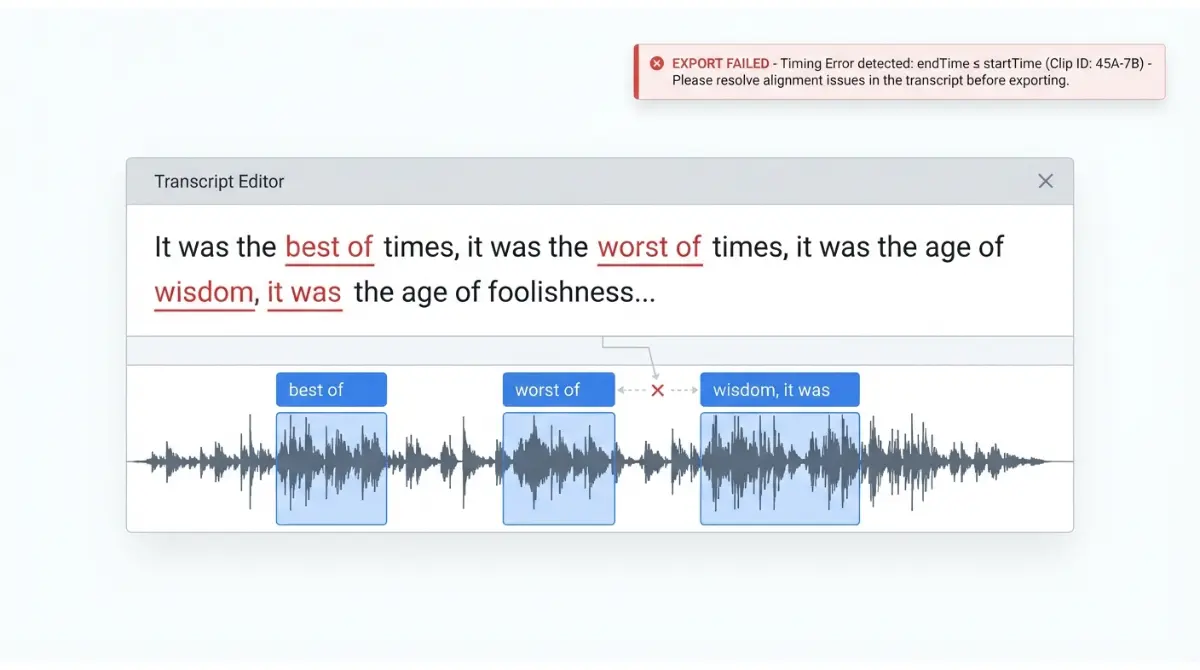
Table of Contents
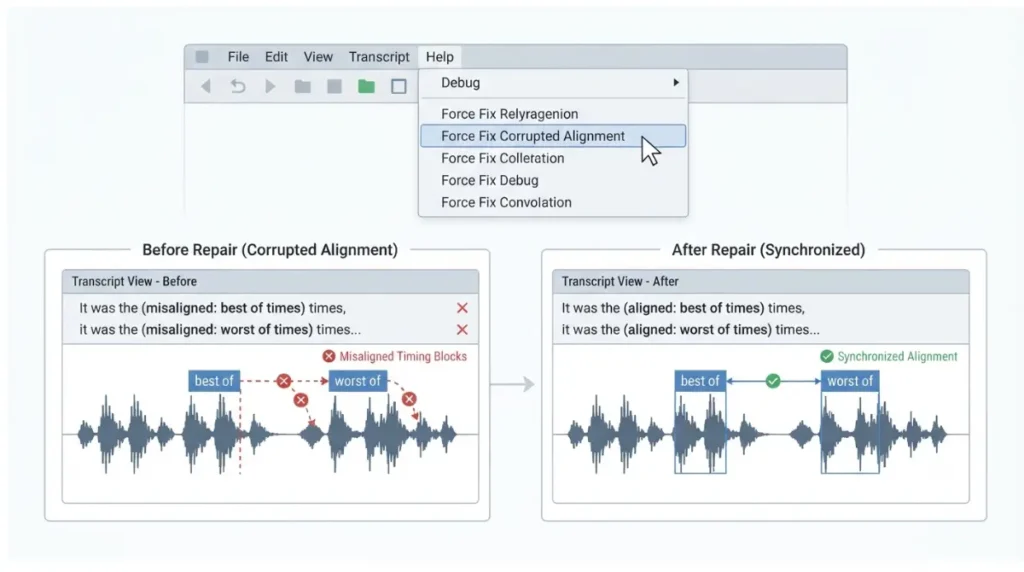
If Descript shows solid red underlines in your script, or a local export fails with “Cannot create a word with endTime ≤ startTime,” Descript’s help pages (retrieved 17 September 2026) point to one command: Help > Debug > Force Fix Corrupted Alignment. Export a project backup first. If misalignment is limited to a few words, Realign words in range is the lighter fix.
What a Descript alignment error looks like
An alignment error means the Descript transcript no longer matches the timing of the audio underneath it.
Red underlines and edits that clip the wrong audio
Descript’s transcription troubleshooting page, retrieved 17 September 2026, lists skipped words, overlapping phrases, timing mismatches, red underlines, disappearing corrections, and speaker labels that won’t stick. Misalignment can also make Remove filler words clip the wrong audio.
The endTime ≤ startTime export error
Descript’s export error guide, retrieved 17 September 2026, says this error typically points to corrupted alignment data. Other export failures are covered in our Descript export errors guide for the desktop app.
| Symptom | Documented fix (retrieved 17 Sept 2026) |
|---|---|
| Solid red underlines | Force Fix Corrupted Alignment |
| endTime ≤ startTime export error | Force Fix Corrupted Alignment |
| A few words land early or late | Realign words in range, or the wordbar |
| Blank or missing transcript sections | Separate into mono files |
Back up the project before you force fix
A manual backup gives you a restore point before you run a command Descript doesn’t fully describe.
🛟 Back This Up First: Descript’s help center does not say what Force Fix Corrupted Alignment changes or whether it can be undone (checked 17 September 2026). Save a .debackup file to your computer before running it.
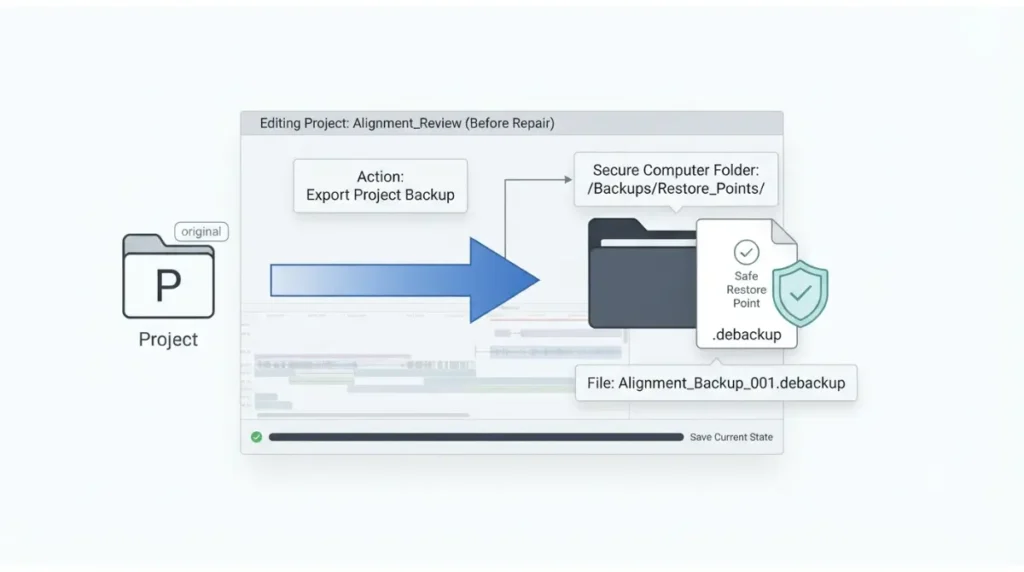
Export a manual backup
These steps come from Descript’s backup instructions, retrieved 17 September 2026. They apply to the app layout with a ☰ menu in the top-left corner.
- Open the project.
- Click the ☰ menu, then select Help & feedback > Debug > Export project backup.
- Choose a destination, name the file (for example, MyProjectBackup.debackup), and click Save.
Where Descript’s automatic backups are
Descript also saves automatic backups. They are listed under View automatic backups in that same Debug menu, where you can preview or restore one. Importing a backup creates a new project with “(Backup Import)” in its title.
How to run Force Fix Corrupted Alignment
Descript’s transcription and export guides give the same path, as of 17 September 2026.
- Save a backup, using the steps in the section above.
- Open the Help menu, then Debug.
- Select Force Fix Corrupted Alignment.
- Check the script for remaining solid red underlines, then retry the export if that is what failed.
If your app doesn’t show a Help menu
Descript’s guides document the Debug menu in two other places, both retrieved 17 September 2026:
- The ☰ menu route used in the backup steps above.
- The Help Center (?) icon in the top-right corner, which Descript’s contact page lists as holding a Debug entry.
Neither of those pages names Force Fix. The desktop app updates itself when it restarts, so your layout may differ from an older guide. If Force Fix isn’t in any Debug menu you can open, stop and contact support.
Descript for Web
Descript’s guides don’t say whether Force Fix is available in the browser version (checked 17 September 2026). Our suggestion is to run it from the desktop app, which is listed in our Descript system requirements guide.
If the transcript is still out of sync
Work down these fixes in order. Each one is more disruptive than the one before.
Realign words in range
Per Descript’s Realign words in range guide, retrieved 17 September 2026:
- Highlight the text in the script editor, or use the Range tool in the Timeline.
- Right-click the selected range in the Timeline.
- Select Realign words in range.
Drag one word’s boundary in the wordbar
Per Descript’s guide to adjusting word boundaries, retrieved 17 September 2026:
- Zoom in on the word in the Timeline until it separates from its neighbours.
- Hover over its start or end boundary.
- Hold Command (macOS) or Control (Windows) until the trim icon appears.
- Drag the boundary into place. This works one word at a time.
Re-transcribe the file
🛟 Back This Up First: Descript’s guides don’t say whether re-transcribing keeps your manual corrections (checked 17 September 2026). Save a backup as described above.
- Open the file’s options menu.
- Select Re-transcribe.
When to check Descript’s status and contact support
This is where self-service ends. Contact support if Force Fix isn’t in your Debug menu, or if red underlines or the export error survive every fix above.
Check the status page first
Descript’s live status page tracks the Desktop App and Web App separately. If either shows an incident, wait before you change anything else.
What to send support
Per Descript’s support page, retrieved 17 September 2026:
- Live chat is for paid plans, Monday to Friday, 5:00 a.m. to 5:00 p.m. PT.
- Email tickets are open to everyone.
- Include your project link, a short screen recording, and the exact error text.
How to reduce alignment problems next time
Three documented causes are within your control.
Sequences with duplicate speaker tracks
In a sequence, check that tracks are aligned. If several tracks carry the same speaker, exclude the extra tracks from the script (Descript’s transcription troubleshooting page, retrieved 17 September 2026).
Stereo files with channel delay
A stereo file with significant delay between channels can produce a blank or partial transcript. Descript’s documented fix is to separate the file into mono files and transcribe only the clearer channel.
Very long source files
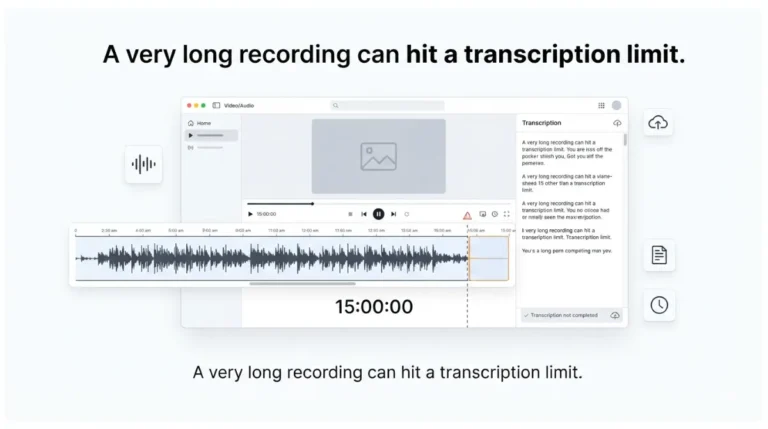
Files longer than 15 hours fail to transcribe automatically, per the same page on 17 September 2026. Descript recommends splitting large files before uploading.
🧾 Not Tested: We did not run Force Fix Corrupted Alignment or the steps above in the Descript app. Every step comes from Descript’s help center as retrieved on 17 September 2026. We could not confirm which Debug-menu layout current builds show, or whether Force Fix exists in the web version.
FAQ
1. Is Force Fix Corrupted Alignment safe to run?
Descript’s help center doesn’t say what Force Fix changes or whether it can be undone, so export a project backup before running it.
2. Where is the Debug menu in Descript?
Descript’s guides document the Debug menu in three different places. The section on running Force Fix lists all three, with retrieval dates.
3. Does Force Fix Corrupted Alignment work in Descript for Web?
Descript’s guides don’t say whether Force Fix is available in the browser version. We suggest running it from the Descript desktop app instead.
4. What does “Cannot create a word with endTime ≤ startTime” mean?
Descript’s export guide says this error typically points to corrupted alignment data, which Force Fix Corrupted Alignment is documented to fix.
5. Why are there red underlines in my Descript script?
Descript lists red underlines as a sign of misalignment. For solid red underlines, Descript documents Force Fix Corrupted Alignment as the fix.
6. How do I realign part of a Descript transcript?
Select the script range, right-click it in the Timeline, and choose Realign words in range to re-sync that section.
7. How do I fix one misaligned word in Descript?
Zoom into the word in the Timeline, hold Command or Control over its boundary, and drag it into place, one word at a time.
8. Why does Descript’s Remove filler words cut the wrong audio?
Descript says misalignment can cause Remove filler words to clip the wrong audio. Fix the alignment first, then run the tool again.
9. How do I contact Descript support about an alignment error?
Use live chat on paid plans or submit an email ticket, and include your project link, a screen recording, and the exact error.
The order that protects your project
Confirm your symptom, save a backup, then run Force Fix Corrupted Alignment. If the transcript is still out of sync, realign the range, adjust individual words, or re-transcribe. Stop at the point where support takes over. If repeated failures have you weighing whether Descript is worth keeping, see what each Descript plan actually costs.