Canva Data Export: What the ZIP Includes and Leaves Out

Checked on 27 October 2026. One request under Account & security, made on a computer, gets you a ZIP of your Canva designs and uploaded files, plus four profile fields: name, email, phone number and profession. The help page leaves out the file format the designs arrive in, never mentions Brand Kits or comments, and…
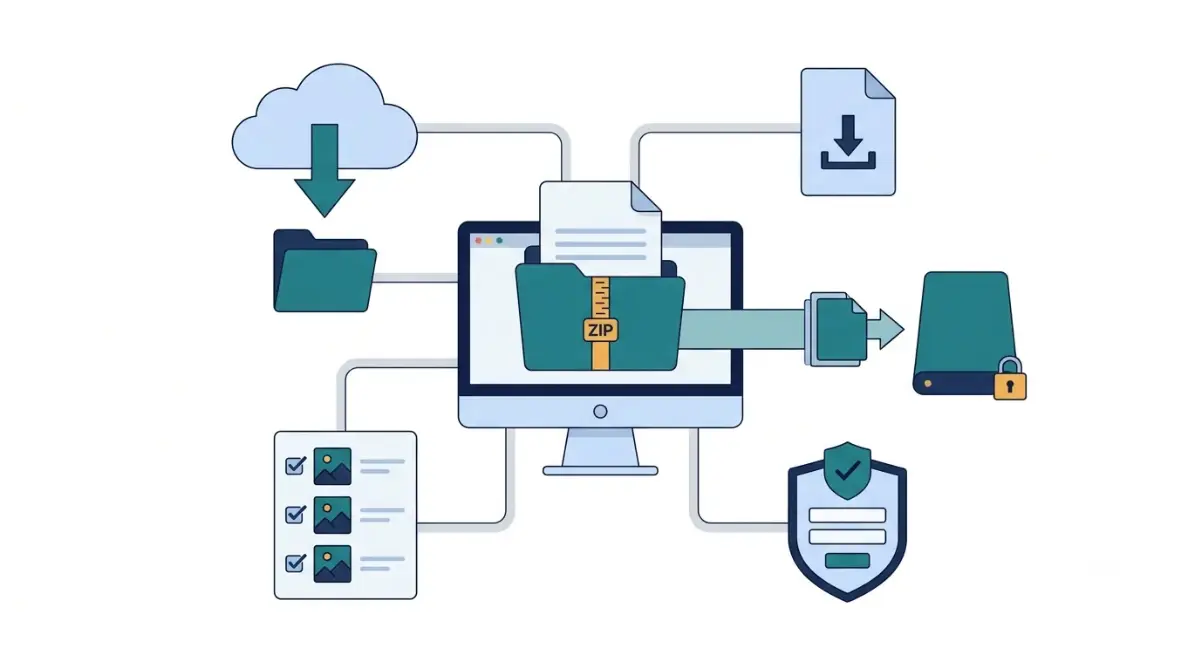
Table of Contents
Checked on 27 October 2026.
One request under Account & security, made on a computer, gets you a ZIP of your Canva designs and uploaded files, plus four profile fields: name, email, phone number and profession. The help page leaves out the file format the designs arrive in, never mentions Brand Kits or comments, and team content goes only to the team’s owner.
Four ways to get your work out of Canva
Canva offers four routes, and each one covers a different slice of an account.
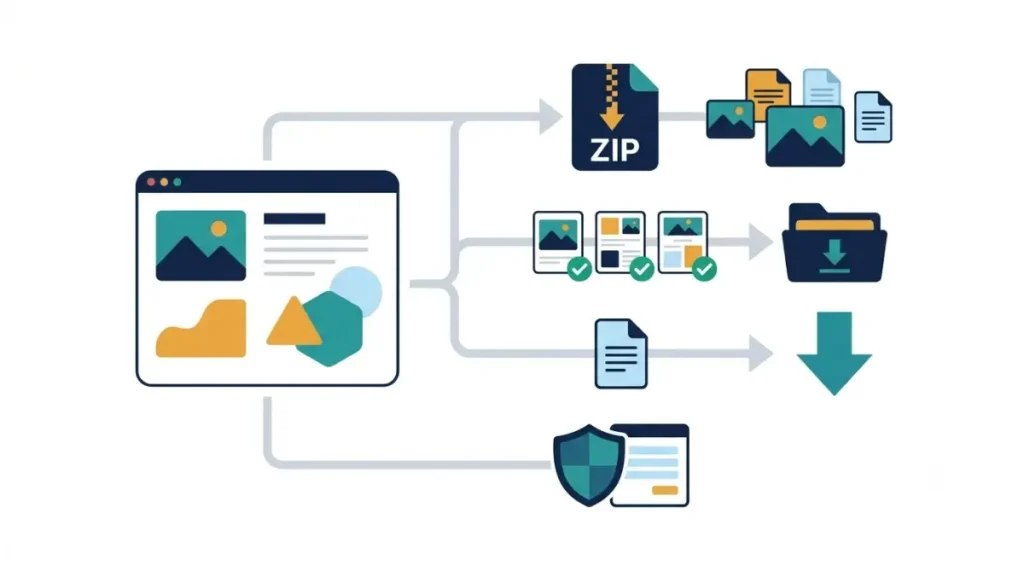
| Route | Who can use it | What you get | Limits |
|---|---|---|---|
| Account-wide ZIP | Any account, on desktop; team content needs the owner | Designs, uploaded images, videos and fonts, four profile fields | Ready in 24–72 hours; link lasts 14 days |
| Multi-select download from Projects | Pro, Teams, Business, Education and Nonprofits, on desktop | PDF, JPG, PNG, MP4 or GIF, one file type per batch | 200 designs per batch (25 as MP4 or GIF); up to five top-level folders, no subfolders; one flattened ZIP |
| One design from the editor | Every plan | Any supported type, including PPTX for presentations, DOCX for Canva Docs, CSV or XLSX for Canva Sheets | Premium elements need a license purchase, an upgrade or a watermarked draft on Canva Free |
| Privacy request | Anyone whose personal data Canva holds | Personal data beyond the four profile fields | Sent through a form, separate from the ZIP |
Sources: Canva’s bulk-download help page, Canva’s download help page, Canva’s file-type guide, Canva’s privacy request form.
Canva Free accounts aren’t shut out of a full backup. The bulk-download help page puts no plan requirement on the account-wide ZIP, and only multi-select from Projects is reserved for paid plans. If exports are the main reason you’re weighing Pro, what Canva Free keeps locked covers the remaining differences, and Canva’s plans, AI limits and refunds has the prices.
Editable files are the slow route. PPTX and DOCX aren’t among the multi-select formats, and nothing documents the account-wide ZIP containing them, so an editable copy means opening each presentation or Doc and downloading it on its own.
What’s inside Canva’s account-wide ZIP?
Canva describes this export as a portable ZIP of your designs plus your uploads, split into images, videos and fonts. The personal data in it stops at first and last name, email, phone number and profession, and only the fields you filled in.
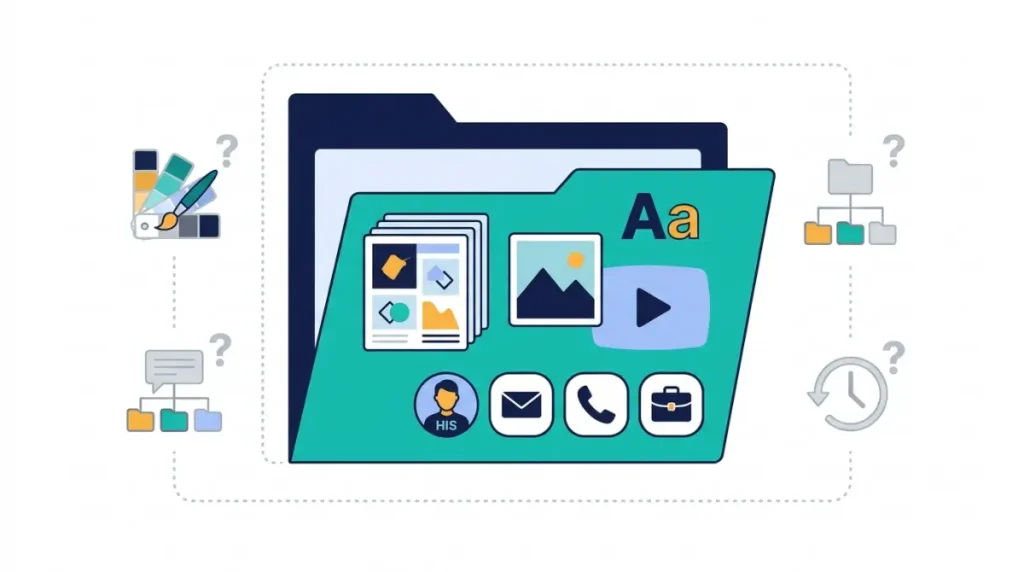
Big accounts don’t arrive as one file. The download window breaks the export into several parts, depending on how many uploads and designs the account holds.
Team members get less. Inside a team, only the team owner can download the team’s uploads and designs, and designs made in a team workspace belong to that workspace (About Canva Teams). If you’re leaving a job, ask the owner for a copy, or download the designs you need while your access lasts.
There’s no phone version of this. The account-wide export and the multi-select download both run on desktop only.
The ZIP also isn’t a privacy-law access request. Canva’s developer documentation on export events states that directly, so a full copy of what Canva holds about you goes through the privacy request form instead.
Not on Canva’s list: Brand Kit, comments and folders
Rebuilding a brand in another tool usually starts with the parts the export page never names. It is silent on the file format of exported designs, on Brand Kits, on comments and version history, and on whether your folder structure survives.
“Not listed” means Canva hasn’t documented it; the item may still turn up in the ZIP. Treat each one as missing until you open the files and find it.
Copy your Brand Kit by hand before you leave: brand color hex codes into a text file, plus your logo and font files. Uploaded fonts are part of the export, while brand colors don’t appear on the list at all.
One more gap matters on Canva Free. Whether designs with premium elements come through clean or watermarked in a Free account’s ZIP is undocumented. A related rule is documented: when a paid team plan lapses, designs stay saved, but Pro elements in them show watermarks on the Free plan. For what you’re allowed to do with premium content you already downloaded, see how Canva’s license types differ.
Check PDFs before sharing them. A PDF of a design with a cropped image still holds the whole original image, and Canva’s file-type guide warns that a PDF editor can pull it back out.
How to download all Canva designs in one request
You need a computer and, for team content, the owner’s login. The path on the bulk-download help page runs like this:
- Select your account profile on the homepage.
- Choose Settings.
- Select Account & security.
- Open Download your Canva uploads and designs (team owners see Download your Canva team uploads and designs).
- Click Request to download.
Preparing the files can take 24–72 hours, and an email tells you when they’re ready. Past 72 hours, the help page points you to Help Assistant.
By the count in Canva’s developer documentation, the link is valid for 14 days from the request, not from the email. If preparation takes the full 72 hours, about 11 days remain, so download each part the day the email lands.
If the email says Canva couldn’t copy everything, save what did arrive and compare it with your Projects page. Download missing designs from the editor individually, and contact Help Assistant within 14 days of receiving the link about any you can’t find in Projects.
Before you delete your account
Back up first: request the export, save all its files, and check them against Projects before you submit a deletion request. Deleting removes your designs, folders, templates, uploads and any teams or apps you created (Canva’s delete-account page).
The order is forced anyway. Once an export is requested, Canva blocks account deletion until the download completes.
Deletion isn’t instant. The account goes 14 days after the request, and signing back in during that window cancels it. Accounts managed by an organization can’t be deleted by the user.
Designs you trash before then stay in Trash for 30 days (Canva’s Trash help page). Once Trash is emptied, a restore means contacting Support within 14 days. A team deleted by its owner runs on a similar clock: the owner can restore it for 14 days, and after that the team and its designs are permanently gone (Canva’s missing-designs page).
Before you cancel: a Pro, Teams or Business plan keeps charging until it is canceled, so cancel it before deleting the account. Each billing route has its own steps in how to cancel a Canva subscription.
Request the ZIP on a computer, then check it against Projects
Open Account & security on desktop today and request the download, since the 14-day clock starts at that click. When the email arrives, save the parts, match the design count to Projects, and copy your brand colors before you cancel or delete anything.